This lab walkthrough provides a precise, no-nonsense blueprint for mastering the forensic mindset required in modern SOC environments. It successfully distills complex malware deobfuscation into a clear, actionable workflow for serious practitioners.
Install our extension to search inside any video instantly.
CyberDefenders SOC Analyst Lab - Silent Breach
Added:I think it's about time that we start tackling a forensic lab, don't you think? In this video, we'll go over a cyber defenders lab called silent breach, where we'll analyze a disk image and gather some interesting information.
But before we get started, I have a free community for aspiring sock analyst called the mighty for sock community. So if you want to be surrounded with like-minded individuals working towards the same goal, I would highly recommend checking it out. Link will be in the description down below. All right, to get started you want to head over to cyberdefenders.org and create an account if you haven't done so already. From here, we want to select a labs and then we'll want to search for silent breach.
And this is the one that we'll take a look at. Now let's look into the scenario. It says the IMF is hit by a cyber attack compromising sensitive data. Luther sends Ethan to retrieve crucial information from a compromised server. Despite warnings, Ethan downloads the Intel which later becomes unreadable. To recover it, he created forensic image and asked Benji for help in decoding the files. Now cyberdefenders does provide us with a resource here called Windows mail artifacts, the Microsoft hxstore.hxd.
And if we click into that, this is a blog post by Bond Caldo and it talks about this particular artifact that it's located under this directory. And it says here, "Recently a new file was found that my professor and I did not recognize. This file, which is called hxstore.hxd, appears to resemble to known store.vol.wlm file. My first guess is just a hex version of the same file, but the alternate file location and structure had me curious. After not finding any analysis of this new file online, I figured I should take a look at it." And if we look into the findings section, we We see that there is a header that starts off with no stromo or no stramo.
But if we take a look here, it says a simple ASCII find all search for at body. It will bring you straight to the message instance, and there will be a reference to the subject of the message thread. So essentially, long story short, we could utilize this artifact to identify email messages. And yeah, take a look here. We can see some text saying no worries, I heard you talking about saving up for a vacation. So that right there is likely the body of an email.
And we also have an email address [email protected].
Very cool. So yeah, knowing that, let's head back over to our Cyber Defenders, and let's download the lab files. While this downloads, taking a look at the tools, we have FTK Imager, text editor, SQLite Viewer, Strings, and CyberChef.
And we have a total of six questions.
Cool. Now that this is finished, let's right-click and extract it. The password is cyberdefenders.org, all lowercase. Now let's head into the directory, and we are left with a.E01 file. To open this up, you do require FTK Imager, which is exactly what Cyber Defender had mentioned. And then from here, I'm going to select file, add evidence item, and let's click into image file. From here, we'll browse over to the path and open it up. If we expand it, we essentially have the user profile of Ethan. So let's take a look at the first question here. It says, "What is the MD5 hash of the potentially malicious EXE file that the user downloaded?" That right there is pretty much a hint. So we'll want to go into Ethan's downloads directory, and we have a couple files here. We have a spy guide. There is a DLL, this pdf.exe double extension, so it is very likely that this is our file of interest. What I'll do is I'll right click, click into export files, and let's put it into our silent breach directory. From there, let's go ahead and open up PowerShell, and we'll run a get file hash {dash} algorithm, and say MD5.
Point it over to our file of interest, and there you go. This right here is our MD5 hash. The next question is, what is the URL from which the file was downloaded? Well, fun fact, if you're not aware, whenever you download a file from the internet, it could contain what is called an ADS, aka alternate data stream. And within this data stream, it could also contain the refer, and also the host URL. So, what we can do from here is expand our downloads, or we can double click into this {dot}exe file. If we do that, we now see something called a zone identifier. This essentially is your alternate data stream. Now, if we click into it, we have a zone ID of three. Three meaning that it was downloaded from the internet. We have the refer URL, and it's pointing over to a IP address of 192.168.128.
And this was on port 8000. We have the host URL itself, so exactly where did they go to to download this file? So, our answer is going to be this one.
Let's go ahead and paste that in, and that is correct. Question number three, what application did the user use to download this file? Okay. So, if I were to go and download a particular file from the internet, I would likely use some kind of browser, right? So, what we can do from here is take a look at Ethan's profile, and see what kind of browser they used. To do this, I'll head over to the app data, go into local, and we do see Google, and of course, there is going to be Microsoft Edge as well, because that is typically automatically installed on every operating system, or Windows operating system, that is. But, we do see Google here, and we do see Google Chrome. So, let's go into Chrome, into user data, and essentially what I'm trying to do here is take a look at the browsing history. That is going to be located under the default directory.
Now, if there is additional profiles, you would actually see that here. You'll see something like profile one, profile two, etc. I'll drill into the default and scroll down. We'll be presented with a file called history. Now, if we extract this, put it into our Silent Breach, we could actually open it up using a tool called DB Browser SQL Lite.
From here, we can simply drag our history file into the tool, and there you go. Now, we'll click into the browse data, and we get some drop-downs here.
There is a downloads table, and we do have one entry, and if I click into the current path, take a look over on the right-hand side, we can see TeamViewer_setup_x64.
So, we know for sure that TeamViewer was installed on Ethan's computer. Was it executed? Well, that's a different story. What else here? We want to take a look at the URLs, and if we look at the URL column, we can see Google, there was a search performed where Ethan searched for test, there's secret scripts to test, TeamViewer, remote desktop softwares, and that's pretty much it.
So, this tells me that Chrome was likely not the browser that was used to download that file. All right, let's go back over to our FTK Imager and instead we'll go into Microsoft Edge and take a look at the history here. So it's essentially the same location under user data default and if we scroll down here we should see history. Go ahead and export that and we'll place it into let's do temp extractor.
That way it's not in the same directory.
From here let's go ahead and open it up.
So I'll go file open go into desktop top silent breach and notice how we don't see anything. Well, that's because it's looking for default extension of DB SQL light and DB3. But if we select all files we can now see the history file.
Clicking into that go into the drop down and let's select downloads. Okay, we got nine entries and immediately I do see the IMF here. So this is the file and if we continue down here we have IMF mission IMF info pdf.exe. So this right here is our file of interest. This tells me that Microsoft Edge is going to be our answer to this question. So let's type in Microsoft Edge. Perfect.
Question number four. By examining Windows mail artifacts which by the way is the one that we saw under the scenario, we found an email address mentioning three IP addresses of servers that are at risk or compromised. What are the IP addresses? Alrighty. If we recall in that article the file location of interest is going to be under the app data local going to packages and we want to look for something that says Windows.
So we see Windows here but we actually want ah this one Microsoft Windows communication. So we click into this directory go into a the state and we should see our hxstore.hxd.
If we click into that, notice how we see the ASCII text of Nostromo. And if you recall in that article, if we search up at body, we should actually see, well, the subject and the body message. Now, what we can also do, by the way, is extract this, put it under our silent breach, and we'll open up CyberChef. From here, let's open file as input, and let's open it up. Now, we can do a strings, and this is going to extract all of the ASCII text, and from here we can actually extract IP addresses, just like so. Now, if we unique it, we have three IPs. So, these are likely the ones that the question is looking for.
But, how do we know for certain? Well, before I do any kind of searches, let me go ahead and copy this, and I'll put it into my notes. But, to be certain, let's go ahead and copy one IP, and I'll just do a control F, and let's see what we can find. So, right here, we have the IP, and then notice how it says at risk from London. There's another IP address, partial breach detected. And yeah, if we scroll up just a bit here, we can actually read out the threat actor and the beginning of what appears to be the email. Hi Luther to Benji. Now, who is the sender? That I am quite curious.
Okay, if I go back over to FTK Imager, this is a lot neater, at least in my opinion, and we got our IP addresses here. Now, if we scroll up, we can read out their leader, Alistair Cain, has somehow gained access to our most secure systems, and it's coming from a notorious group. And right here, Ethan, I hope you're holding up, but we've got a situation. Now again, who is this sent by? K, I do see Ethan [email protected].
Oh, that reminds me. What if I do a remove null bytes and instead of extract IP, we do extract email addresses.
And let's disable this operation. So, we see an email right here called Stickel.
Now, if we search for this in FTK, we do see Stickel at outlook. Top secret cyber attack to Ethan Hunt. So, yeah, this right here is likely our or at least part of the sender's email address.
Okay, let's go into Cyber Defenders and answer this question here. What are the IP addresses? Well, those are these ones right here. I'm going to copy it, paste it in, and we do need to separate it with a comma, right? Yeah. And hit submit. Cool. Question number five. By examining the malicious executable, we found that it uses an obfuscated PowerShell script to decrypt specific files. What predefined password does this script use for encryption? Well, similar to what we did with this particular file, I'm going to click on clear recipe, and let's open another file, and let's open up this EXE file.
Remove my search, and let's pull in strings once again.
Okay, so I went ahead and searched for PowerShell. So, this right here.
Because if we take a look at the question, it's saying that we found that it uses an obfuscated PowerShell script.
And if we take a look, we do actually see a PowerShell obfuscation using what appears to be base64.
Now, if we copy this and open up a new tab, paste that in, let's do base64, and I am going to disable the strings operation and we don't get anything. Why is that? Well, that is because it's actually in reverse. So, if I put in reverse and drag it to the top of from base 64, there you go.
We actually see the password right here.
So, that is going to be our answer to question number five. Now, you might be wondering, "Steven, how did you know it was reverse?" And that's a great question. So, if I go back and disable all of these and re-enable my strings, go back into output number two, and for some reason it is messing up. So, let me clear the recipe. Let's do another strings and we'll look for PowerShell.
So, this right here.
And then we scroll up just a bit, we can actually see the word reverse. So, it's essentially reversing this particular variable. And this variable is assigned this variable. [laughter] And that particular variable is our reversed base 64. So, that's how we know. Okay, the last and final question.
After identifying how the script works, decrypt the files and submit the secret string. Okay, if we go back over to number three and I will remove the strings, put in reverse and let's do base 64.
Now, let's take a look. We do see that it is listing these two input files, the IMF mission and IMF secret. And then we're going to output the file here where it replaces the.pdf and puts in the.enc.
So, you know what we'll do? We'll just go ahead and copy this. And why don't we use our trusty ChatGPT? And I'll say, "Based on this script, can you please create a script to decrypt our files.
And this right here is a valid use case to use AI to your advantage. Now, let's try it out. I'll copy this, open up a new notepad. Now, let's not save it. We don't need it.
Paste it in, and I'll save this as a PowerShell script. I'll call it test.ps1.
And we'll put it into our same Silent Breach directory. But before we run it, I need to make sure that the input files is correct. Cuz currently it is pointing over to Ethan's user profile. So, just to make sure that I don't put any typos, I am going to type in PWD, and that is going to print the full path here. Now, let's go ahead and replace it, just like that. We'll save this out. The last thing to do is essentially look for those files. And we know that Ethan did in fact download those files based off of his web history. So, if we go into documents, no, there's nothing here.
What about desktop? Ah, there you go.
So, there's two files here, and they're both encrypted. So, let's export both of these files, and now moment of truth.
We'll type in test, hit tab for auto completion, and enter. Okay, there's no errors. Did that work? And it did. Look at that. We got some PDF files. Open that up. Here is our flag. Very cool.
What is the secret file? Ah, okay. Just an objective. But yeah, that is again how you can use AI to your advantage.
The last thing that we need to do here is paste in our flag, and then hit submit. And just like that, you completed Silent Breach. If you followed along, I do hope that you learned something new that you can take away and apply to your own methodology. As a reminder, I have a free community for aspiring SOC analysts called to my D for sock community and I hope to see you inside one day. That is it for the video and I hope that you found that informative. If you did, let me know by hitting that like button and subscribe if you want to. Remember to stay curious and do things differently.
Related Videos
6:13
Computer Science
TOP 15 Data compression Interview Questions and Answers 2019 Part-2 | Data compression | Wisdom jobs
wisdomjobs
281 views•2019-06-28

27:51
Computer Science
CTS 158: 802.11w Management Frame Protection
ClearToSend
4K views•2019-02-04
23:21
Computer Science
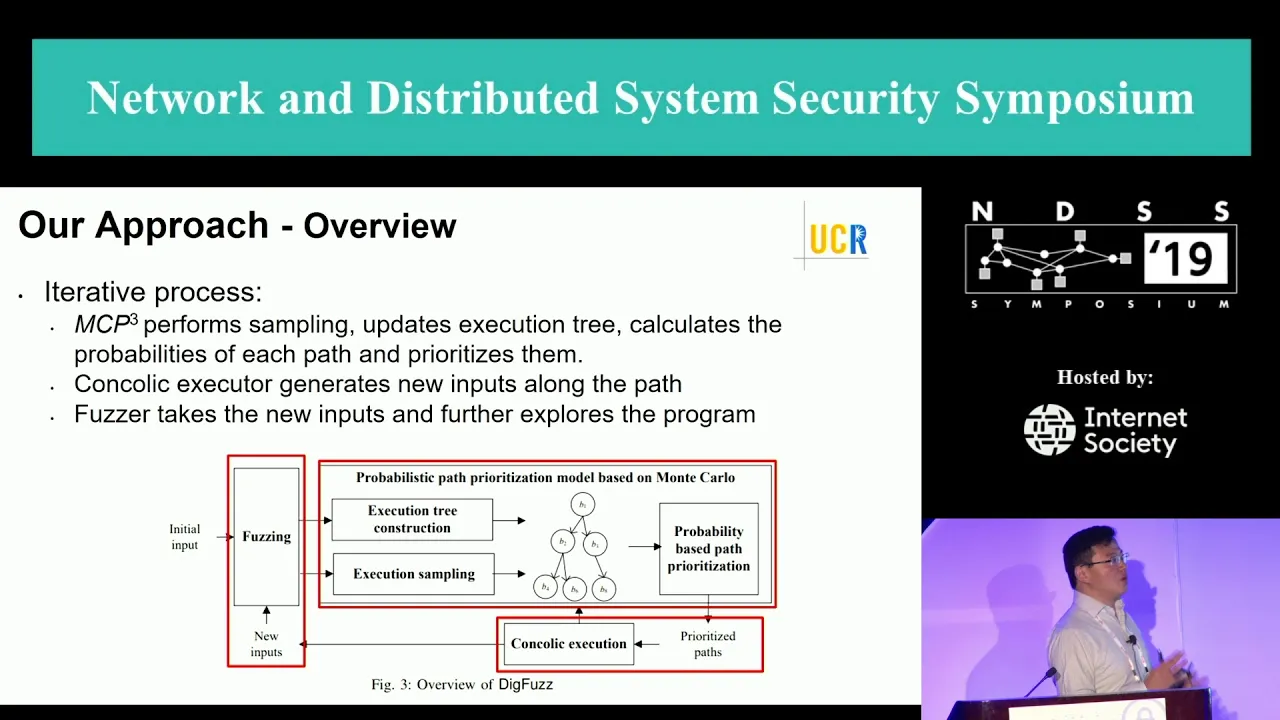
NDSS 2019 Send Hardest Problems My Way: Probabilistic Path Prioritization for Hybrid Fuzzing
NDSSSymposium
496 views•2019-04-02

12:48
Computer Science
How realistic is Cities: Skylines?
CityBeautiful
159K views•2019-02-14
46:39
Computer Science
GUIs & TUIs: Choosing a User Interface for Your Python Project | Real Python Podcast
realpython
2K views•2025-04-04

25:15
Computer Science
The OSI Model - Explained by Example
hnasr
225K views•2019-05-12
1:10:47
Computer Science
Cloud Computing - Introduction
elithecomputerguy
98K views•2019-10-07
2:24
Computer Science
From Traveler's Dilemma to Dynamic Routing | Demystifying Networking
IITBombayJuly
5K views•2019-08-04
Trending

5:41
Business
YouTube Disabled Our Comments Again (Are Any Humans Left at YouTube?)
SpecialBooksbySpecialKids
39K views•2026-07-21

5:07
Philosophy
One Must Imagine Sisyphus Happy
vlogbrothers
61K views•2026-07-21

12:30
Business
The Downfall of OnePlus!
techwiser
65K views•2026-07-21

30:21
History
The REAL History Behind The Odyssey Will BLOW Your Mind! It's NOT a Myth!
metatronyt
20K views•2026-07-21