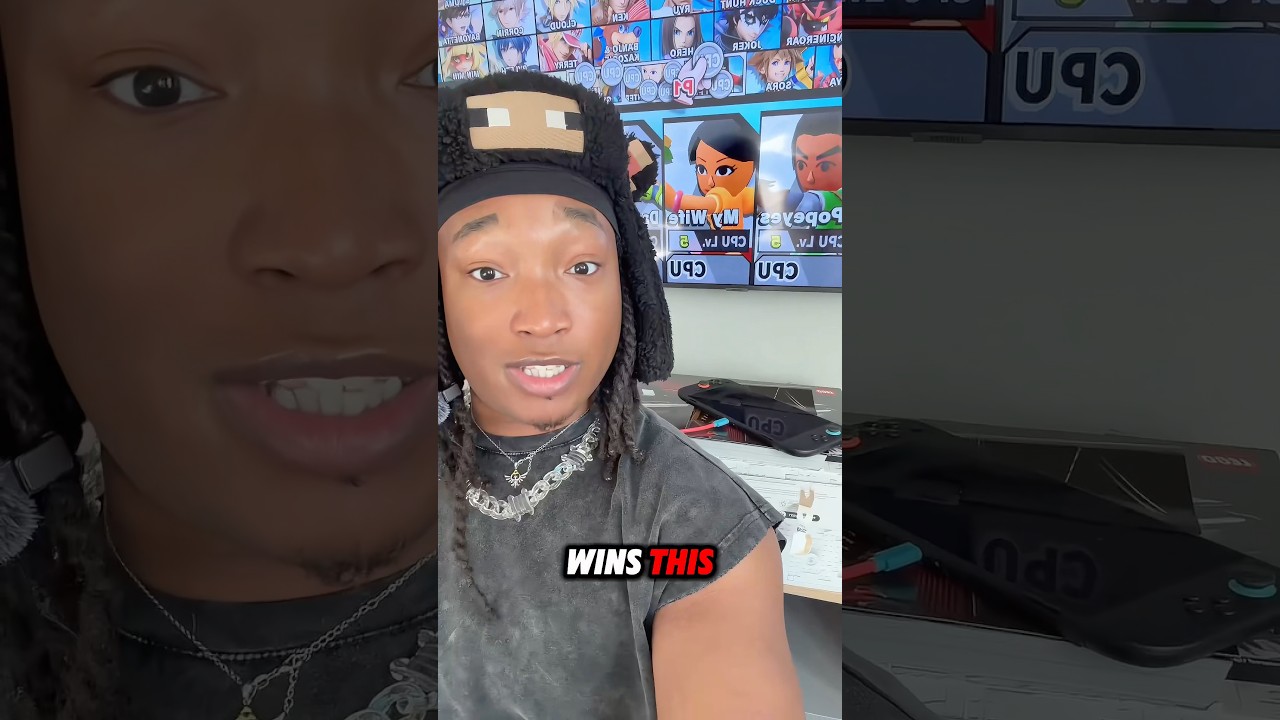
This tutorial demonstrates how to create three distinct video transitions in Adobe After Effects: (1) A shake transition using S shake effect with amplitude and frequency keyframes, exposure effect, BCC lens blur, and flash effect; (2) A blur transition using S blur more curves with X shift keyframes on two clips; (3) A wipe transition using CC radial scale wipe effect with keyframes and additional effects like turbulent displace, fractal noise, and deep glow. Each transition requires creating adjustment layers, setting keyframes, applying effects, and using Easy Ease with graph editor for smooth animations.
Installez notre extension pour rechercher instantanément dans n'importe quelle vidéo
3 Different Transitions l After Effects TutorialAjouté :
[music] [music] >> Step one, go to layer, then new and add an adjustment layer.
>> [music] >> Trim the unwanted part of the clip.
Now, apply the S shake effect.
>> [music] >> Add key frames for amplitude and frequency. Set the middle values to 0.4 [music] and 100.
Move a few frames [music] backward and forward. Set both values to zero.
>> [music] >> Select all key frames and [music] easy ease them.
Then open the graph editor and copy my exact graph.
>> [music] [music] [music] [music] [music] [music] >> Next, add the exposure effect.
Set the key frames to zero, 1.2, and back to zero.
>> [music] >> Select all key frames and easy ease them.
Then copy my exact graph.
>> [music] [music] [music] >> Now, add BCC lens blur or BS.
>> [music] >> Change the setting from fast to sharp.
>> [music] >> Open the iris controls and adjust the slice from six to 10.
>> [music] >> Add key frames to the iris scale. Zero, 10, then back to zero.
>> [music] [music] [music] >> Select all key frames and easy ease them.
Then copy my exact graph.
>> [music] [music] [music] >> For the flash effect, create a white solid layer and trim the extra [music] part. Press T to open opacity. Set key frames from 100% to 0%. Select all key frames and easy ease them. Then copy my exact [music] graph.
Now, add a black solid layer.
>> [music] >> Apply [music] the CC jaws effect.
>> [music] >> And follow my steps.
>> [music] [music] [music] >> Select all key [music] frames and easy ease them. Then copy my exact graph.
>> [music] [music] >> And that's it. Your first transition is ready.
>> [music] >> Second transition. On your first clip, add S blur more curves.
>> [music] [music] >> Add key frames on X shift. Set the first frame to zero and the last [music] to 0.600.
Now, go to the [music] second clip and add S blur more curves again.
>> [music] >> Just reverse the values. First frame, minus 0.600, and the last, [music] zero.
>> [music] >> Also, enable both of X and [music] Y wrap.
>> [music] [music] >> Now, select all key frames and easy ease them.
>> [music] >> Then copy my exact graph.
>> [music] [music] >> Next, go to layer, then new and add an adjustment layer.
>> [music] >> Duplicate the adjustment layer.
>> [music] >> On the first adjustment layer, apply the S shake and copy my values. [music] >> [music] [music] [music] [music] [music] [music] >> Now, add S time slice.
>> [music] >> Change the slice direction to minus 180 and slice number to four, then enable interpolate [music] frames.
>> [music] >> And that's it. Your second transition is also done.
>> [music] >> Transition three.
Go to layer, then new and add a solid layer.
>> [music] >> Choose any color you want.
>> [music] >> Now, [music] add the CC radial scale wipe effect.
Add key frames. Set the first frame to 100.
>> [music] >> And the last frame, where your first clips ends, to zero.
Also, [music] make sure to check the reverse transition box. Again, add CC radial scale wipe. [music] This time, add key frames from zero to 100.
>> [music] >> Now, select all key frames and easy ease them.
>> [music] >> Then open the graph editor and copy my exact [music] graph.
>> [music] [music] [music] >> Adjust the key frames like me.
>> [music] [music] >> Next, add turbulent displace.
>> [music] [music] >> Set amount of 550 and size to 15.
>> [music] [music] >> Now, add the fractal noise effect.
>> [music] >> Change the contrast to 200.
Alt click on evolution and copy my script. [music] >> [music] [music] [music] >> Add the tint effect and choose any colors you like.
>> [music] [music] >> Now, add deep glow and set [music] the exposure to 0.25.
>> [music] >> Add drop shadow and copy my values.
>> [music] [music] [music] >> Finally, add an adjustment layer >> [music] >> and apply soft shake.
I already showed how to create it [music] in the first transition, so just copy and paste it here.
And that's it. Your third transition is done. [music] Hope you liked the tutorial. See you in the next one.
Vidéos Similaires

She Lost Her Car... But We Still Helped Her!
RecoveryBoyz
129 views•2026-05-30

SHOCKING! Leaked Photos Reveal Ding Yuxi’s Stunning Transformation Into a Warrior
BINGBONGMEDIA99
101 views•2026-05-30
Top 9 BEST New Gravel Bikes 2026 | LEAKED Bikes & The New Specialized Crux
cyclingweekly
2K views•2026-05-30

Norwegian Man Forced to Grow Up in India After Being Left There at Age 10 😳
VividVaulttt
176 views•2026-05-30

H&M try on haul. spring, summer fashion ideas.
VanityAndMe
222 views•2026-05-31

FIFA World Cup 2026 | Full Details, Teams, Matches & Everything You Need to Know
farooqkha-h5
108 views•2026-05-30

This Literally Is the Most Forgotten Thing in Fortnite History..
Clen-
4K views•2026-05-30

A Romantic Spring in 1950s Netherlands | Pavolira’s Vintage Songs | Soft Vintage Jazz
Golden1950sRadio
391 views•2026-05-30