REXX programs on TSO/E can be executed through three methods: Explicit execution requires the fully qualified dataset name and member name, using commands like TSO EXEC or EX; Implicit execution only requires the member name but requires pre-configuring the REXX library through TSO ALLOCATE; Batch execution runs REXX as a background job using JCL with EXEC statements, requiring job ID tracking and SDSF monitoring for verification.
Install our extension to search inside any video instantly.
Execution Explained: Explicit, Implicit, and Batch
Added:Welcome back mainframe friends. It's me Stephen with new to Zed and in today's video we're going to take a look at how we can execute Rex on the main frame.
Now we can do this one of three ways through explicit execution, implicit execution, and finally batch execution.
So let's dive in and take a look at how we can do each of these.
Now with explicit execution, we need to know a couple pieces of information. The first being the fully qualified data set name and the second being the member name itself. And what's kind of neat about this is the system doesn't need to go searching through any libraries because it knows exactly where the exact is that it's trying to execute. Let's take a look at how we can do this. It's pretty easy. uh from within our member itself. We can execute the command TSO exec and then I need to grab this piece of information right here which is the DSN plus the member name. Going to paste it in here. Go to the very end and then we have to provide an additional exec at the end here. And if I press enter right now what we should see is that it has executed. It's technically lying because we're not executing from JCL, but we'll get to that point. Now, the other way we can do this is TSO ex. And we can paste that in there again.
Type another ex at the end. Press enter and our exec is running again. Now, the reason we have to preface this with TSO right here is because this doesn't know uh what exec or ex is at least on my system. And so we need to tell it that it's a TSO command. The other way that we can explicitly execute this is directly from the option six command line. And we here because it's in the TSO environment, we don't have to tell it that we need to use TSO. So we can simply type exact or ex paste in the name.
And one more time, press enter. And there we go. Our exec has executed directly there. And to show you the other way, we can use exec. Paste in the data set name and the member.
Type exec one more time. Press enter.
And voila. We have now executed these explicitly.
And now to demonstrate the final form of explicit execution. We have to back up one. So we're going to press F3. That's going to take us back up here to our main list of members. And over here in the command area, I'm just going to type in the uh letter the word x ex. And I'm going to press x now. Now under the hood, this is the short form of tso exec. So I'm going to press enter. And there it goes. It executes just fine. So those are the three forms of explicit execution. Next we'll take a look at implicit execution.
Okay, let's take a look at implicit execution. Now, this is kind of cool because unlike before where we had to know the fully qualified data set name, with this we only have to provide the member name. However, it does require one additional step which is to concatenate our Rex exec library to the CIS proc or CIS exec libraries. Right now we're not going to focus on making this automatically happen uh at login.
What we are going to do is come over to option six which is our ISPF command shell. And we're going to enter in uh this command. Excuse me. We don't need the TSO on this. And we also need to change this because our execs are in the assigns uh data set.
And I'm not going to execute this because I've already run it. And if I were to do this again, it would cause a little bit of confusion and then I'd have to go through some steps that I don't want to do for this video. So, let's go. Let's break down what this is.
Whoops. Look at that. I've gone through and done something goofy. That just shows you right here that I am human and prone to making mistakes. So, so TSO allocate, it's basically just saying, hey, I want to do file allocation and linking it to our session. The FI here stands for file. It's the data data set name label and it's basically the nickname the system uses to find the library.
The DA specifies the actual data set name on the system. Share means that uh it's granting shared a access to this allowing others to read the file when you use it. And finally, we have the reuse parameter, which is essentially a safety switch. And if the label is already in use, it kind of clears the old one and links and assigns the new one, preventing errors. At least that's my understanding of it. Something I've described here doesn't make sense or described it goofy, feel free to comment below and and correct me in the comments. All right. So, I'm not going to go ahead and execute this because I've already already done it. And like I said previously, if I did that again, then I'd have to do a whole bunch of extra steps. And I don't feel like doing that. So, I'm going to go ahead and clear this. We're going to hop back over here to our Rex tab, [clears throat] and I'm going to execute this uh using RXJCL.
And we'll probably get a little bit of complaint that this isn't a line command or primary command. But we should be able to execute it. And sure enough, hello. This is a procedure. This procedure was executed from JCL. Uh, and sure enough, hey, this isn't a macro.
Uh, so let's go and see if we can run it from the command. We should be able to.
RX JCL. Press enter. Hello. And sure enough, it's registered and we can execute it anywhere. So now that we've seen how we can do implicit execution, let's take a look at batch execution with JCL.
All right, let's take a look at how we can do batch execution. And this is done through JCL. And this is kind of a weak point for me right now because I'm still not not expert in JCL. Actually kind of question, are there experts in JCL? But I digress. So what we do at at this point is we create our JCL uh program.
This seems to be the standard format to do it. we uh tell it where the data set is and we're tell it we're going to write it to this write it out to the file and then we use uh and then we uh have a system in step here which in this case we're just telling it uh hey this is the program that we want to run or the member we're pointing at which is rxjcl and my understanding of cy in is it it basically it acts as the as kind of the keyboard.
I suppose it's what you would type on the keyboard goes into this step. What we're going to do here is we're going to come up to the primary command line and I'm just going to run the uh command sub which is short for submit and I'm going to make note whenever you're running uh JCL it's important that you make a note of the job ID because you could get a long list there and anyway it's good practice that's a good habit I developed early on. So it is 5908 that's what I'm looking for.
We're going to go ahead and uh do enter again here and I'm going to come over to SDSF. Now, sometimes this is as easy as typing SDSF. Uh our system is a little bit different and so I have to do uh just uh 13.14.ST. So anyway, I I see here I'm I'm in a list of my jobs. I actually need to refresh it by typing st again. And I see there is my latest job. So, I'm going to come over here to the command area, line command area on the left here. I'm going to type the letter S and press enter.
And this gives me a dump of my my log of my job. And I can see right here that it's returned an RC of four zeros, which means it's happy. And now if I type the word bottom and go over here, we can see sure enough this was this was I wrote that really badly. This was executed from JCL. And so this is an example a very simple example of how we can do Rex from JCL as a background job. So batch execution. Now, if you have a very complicated Rex that uses some non-standard TSO commands, it's possible that you may have to add a step live or step library uh step in here. And this basically is a special search path that tells the system exactly where uh your specific library is, where to look for it, and to find programs needed to run your your job. However, we we don't have any such thing in this one. So we we don't need it. But that's what step live. That's just kind of a something to point out that you may require a step live. Well, if you found this video useful or interesting, I highly encourage you to like and subscribe and uh press the little bell icon. The usual stuff. Until next time, this is Stephen with New to Zed and may the code be with you.
Related Videos

6:13
Computer Science
TOP 15 Data compression Interview Questions and Answers 2019 Part-2 | Data compression | Wisdom jobs
wisdomjobs
281 views•2019-06-28

27:51
Computer Science
CTS 158: 802.11w Management Frame Protection
ClearToSend
4K views•2019-02-04
23:21
Computer Science
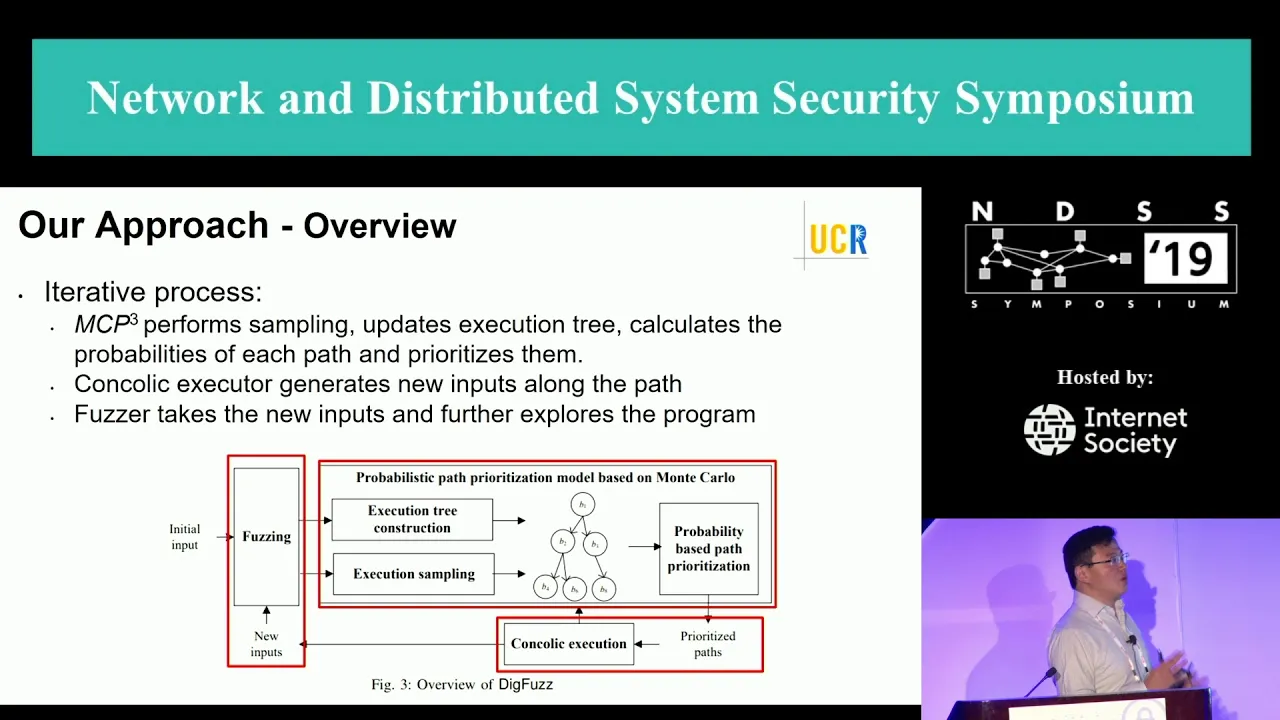
NDSS 2019 Send Hardest Problems My Way: Probabilistic Path Prioritization for Hybrid Fuzzing
NDSSSymposium
496 views•2019-04-02

12:48
Computer Science
How realistic is Cities: Skylines?
CityBeautiful
159K views•2019-02-14
46:39
Computer Science
GUIs & TUIs: Choosing a User Interface for Your Python Project | Real Python Podcast
realpython
2K views•2025-04-04

25:15
Computer Science
The OSI Model - Explained by Example
hnasr
225K views•2019-05-12

1:10:47
Computer Science
Cloud Computing - Introduction
elithecomputerguy
98K views•2019-10-07

2:24
Computer Science
From Traveler's Dilemma to Dynamic Routing | Demystifying Networking
IITBombayJuly
5K views•2019-08-04
Trending

13:25
Business
Playstation NO DISC/NO BUY Fight Is Over...
DavidJaffeGames
4K views•2026-07-23

16:52
Anthropology
Americans Confused in Australia for 17 Minutes Straight
IWrocker
17K views•2026-07-23

7:38
Blockchain & Crypto
Bitcoin Social Interest: Dozens of us Left
benjaminjcowen
12K views•2026-07-23

11:32
Business
Tesla Profits Plunge & SpaceX Stock Continues Fall
TheJohnJohnstonLounge
6K views•2026-07-23