A masterfully concise distillation of network logic that bridges the gap between physical hardware and virtual agility. It is the gold standard for turning abstract segmentation theory into practical, hands-on expertise.
Install our extension to search inside any video instantly.
What is a VLAN, and how to build one
Added:This is Sally. Her business has been growing. She used to run everything from her laptop at home, but now she has an actual office, desks, employees, a small team.
Like most small businesses, she set up her network pretty simply.
Everyone plugs their computer into a switch. The switch connects to the router, and the router connects the office to the internet.
And for a while, everything works fine.
But now that her company is growing, Sally has started noticing a problem.
In fact, she has two teams.
Her sales team works with customer information, contact details, pricing proposals, and client contracts.
Her engineering team works with completely different things, source code, product prototypes, and technical documentation.
Right now, every computer in her office is on the same network, which means anything on any computer can in principle reach anything on any other computer.
If a salesperson's laptop gets infected with malware, that malware can reach the engineering team's files.
If an engineer accidentally misconfigures a share, the sales team can see internal technical documents.
Sally wants to separate the two teams.
Not physically, because they still share the same office space and the same network equipment, but logically.
She wants each team to only see its own traffic.
The technology that allows her to do this is called a VLAN.
Now you might be wondering, what exactly is a VLAN?
VLAN stands for virtual local area network. And the name actually tells us a lot, so let's break it down.
A LAN, or local area network, is what happens when computers are connected together on the same network. They can see each other, talk to each other, share resources.
Virtual means the LAN isn't defined by physical wiring. It's defined by configuration.
You can have multiple logical LANs sharing the same physical equipment, and each computer only sees the LAN it's been assigned to.
Here is Sally's company's network. Sally knows her business, but networking isn't her area of expertise. So, she hired Chuck, a network guru who knows exactly how to fix this kind of problem.
Chuck arrives that morning, grabs a couple of cups of coffee, sits down at the console, and gets to work.
Let's look over his shoulder and see how he builds Sally's VLAN setup.
First, Chuck takes a look at Sally's physical network.
She has one Cisco switch, the same type of switch you would find in a small business office.
Connected to that switch are three computers.
On the left, there is PC 1, a sales team laptop.
In the middle, a second PC, an engineering laptop, and on the right, a third PC, another sales team laptop.
All three computers are plugged into the same physical switch.
Right now, they are all on the same network.
Chuck launches the PC to inspect their IP addresses.
The first sales PC has the IP address 192.168.1.10, the engineering PC has 192.168.1.20, and second sales PC has 192.168.1.30.
This is Chuck's starting point. One switch, three computers, and no VLAN configured yet.
Let's confirm they can all reach each other, starting with PC 1.
Can it ping the engineering PC?
Yes, it can.
Can it ping the other sales PC?
Yes, it can.
And the same is true in the other direction. PC 2 and PC 3 can also reach the other computers on the network.
As you can see, everyone can communicate with everyone else.
That's the normal behavior of a basic switch with no VLAN configuration.
But now, watch what happens when Chuck adds VLANs.
To configure the VLANs, Chuck opens the switch's command line interface.
This is a text-based interface that allows to configure and manage the switch through typed commands.
The first thing he does is enter privileged mode.
This is done with the enable command.
This command gives Chuck access to the switch's administrative commands.
In normal user mode, he can only view basic information. To make changes, he needs elevated privileges.
Next, he enters configuration mode.
The command for this is configure terminal. This tells the switch that he wants to start changing the configuration.
Now, Chuck can create the VLANs. First, he creates VLAN 10 by simply typing VLAN 10.
The number 10 is simply the VLAN ID.
VLAN IDs are just labels that the switch uses to identify different virtual networks.
There is nothing special about the number 10. Chuck could have chosen another valid VLAN number.
Network engineers often use numbers like 10, 20, or 30 because they are easy to remember.
Notice that the command prompt has changed from config to config VLAN.
That's because Chuck is now configuring VLAN 10 specifically. Any commands he enters now will apply to this VLAN until he exits back to global configuration mode.
Next, he gives this VLAN a name, namely sales.
The name command tells the switch to assign a name to the VLAN. In this case, VLAN 10 is named sales.
The name does not affect how the VLAN works. It is just a description that makes the configuration easier for humans to understand. Now, he exits VLAN configuration mode using the exit command.
Now, Chuck creates the second VLAN.
The command VLAN 20 creates a new VLAN with ID 20. Again, the number is just an identifier.
Then, he names it engineering and exits the VLAN 20 configuration.
Now, the switch knows that two separate VLANs exist. VLAN 10 for sales and VLAN 20 for engineering.
But, there is one important thing to know. Creating VLANs does not automatically move any computers into them.
Right now, every switch port is still assigned to the default VLAN, which is VLAN 1 on Cisco switches.
So, even though VLAN 10 and VLAN 20 now exist, none of the computers are using them yet.
The next step is to assign each switch port to the correct VLAN.
So, now Chuck needs to tell the switch which ports belong to which VLAN.
He starts with the port where sales laptop is connected.
The interface command tells the switch which physical port Chuck wants to configure. In this case, it's Ethernet 0/1, the port connected to sales PC 1.
Notice that the command prompt changes from config to config if. That's because Chuck is now configuring a specific interface.
Next, he enters switchport mode access.
The switchport mode access command tells the switch that this port is an access port.
Access ports connect end devices like laptops, desktops, printers, or servers, and they carry traffic for only one VLAN.
Now, Chuck assigns this port to the sales VLAN with the command switchport access VLAN 10.
This places port Ethernet 0/1 into VLAN 10.
That means any device plugged into this port automatically becomes part of the sales network.
And that's it for the first sales laptop.
Next, Chuck configures the engineering laptop. The commands are the same.
Port Ethernet 0/2 is connected to the engineering PC, so Chuck assigns it to VLAN 20, the engineering VLAN.
Finally, he configures the second sales laptop.
Since sales PC 2 also belongs to the sales team, port Ethernet 0/3 is assigned to VLAN 10.
That's it. The configuration is complete. Sales laptop 1 and sales laptop 2 are now members of VLAN 10, and engineering PC is a member of VLAN 20.
Notice that nothing has changed physically. The same three computers are still connected to the same switch using the same network cables.
The only thing that changed is the switch's configuration. Let's see what happens now when the computers try to communicate.
First, laptop one tries to reach the other sales laptop.
Both are in the sales team. Both are in VLAN 10.
That works fine. They can talk to each other.
Now laptop one tries to reach the engineering PC. So sales laptop trying to reach engineering PC.
Nothing. Zero replies.
Let's test the connection in the other direction.
Can the engineering PC reach the sales laptops?
No response from sales laptop one.
What about sales laptop two?
Also, no reply. [music] The separation works both ways.
Remember that these three computers are still connected to the same physical switch.
The cables have not changed. The switch has not changed. The only difference is that they are now in different VLANs.
Sales laptop one and sales laptop two are both in VLAN 10.
The engineering PC is in VLAN 20.
The switch is treating them as two completely separate networks. Almost like there are two different switches sitting inside the same physical device.
And that is the power of a VLAN.
So what actually happened inside the switch?
Let's take a closer look at what the switch is actually doing.
When laptop one sends a packet to the engineering PC, the frame arrives at the switch on port Ethernet 0/1.
The switch checks its configuration and sees this port belongs to VLAN 10.
Next, it looks for the destination device.
The engineering PC is connected to port Ethernet 0/2.
But that port belongs to VLAN 20.
At this point, the switch stops.
It does not forward the traffic because VLAN 10 and VLAN 20 are separate layer two networks.
From the switches perspective, these are two completely separate switches that just happen to exist inside the same physical device.
That's the idea behind VLANs.
A VLAN allows one physical switch to act like multiple independent switches.
A hospital can use VLANs to keep patient monitoring equipment separate from staff computers.
A university can use VLANs to separate student Wi-Fi from administrative systems.
A retail company can use VLANs to keep payment terminals isolated from public guest Wi-Fi.
In every case, the idea is the same.
Just because devices share the same physical equipment doesn't mean they should share the same network.
VLANs allow one physical switch to become multiple logical networks, giving different groups their own separate space while still using the same hardware.
And that's exactly what Chuck did for Sally.
Sally had one flat network where every device was on the same logical network.
Now she has two separate networks running on the same physical switch.
The sales team has its own VLAN and the engineering team has its own VLAN. Same office, same cables, same hardware, but now each team has its own isolated network space.
You've been on VLANs your whole life.
Now you know what they are.
That's it for today. Thanks for watching.
If you found this helpful, hit the like button, subscribe, and turn on notifications so you don't miss the next episode.
See you there. Bye-bye.
Related Videos

6:13
Computer Science
TOP 15 Data compression Interview Questions and Answers 2019 Part-2 | Data compression | Wisdom jobs
wisdomjobs
281 views•2019-06-28

27:51
Computer Science
CTS 158: 802.11w Management Frame Protection
ClearToSend
4K views•2019-02-04
23:21
Computer Science
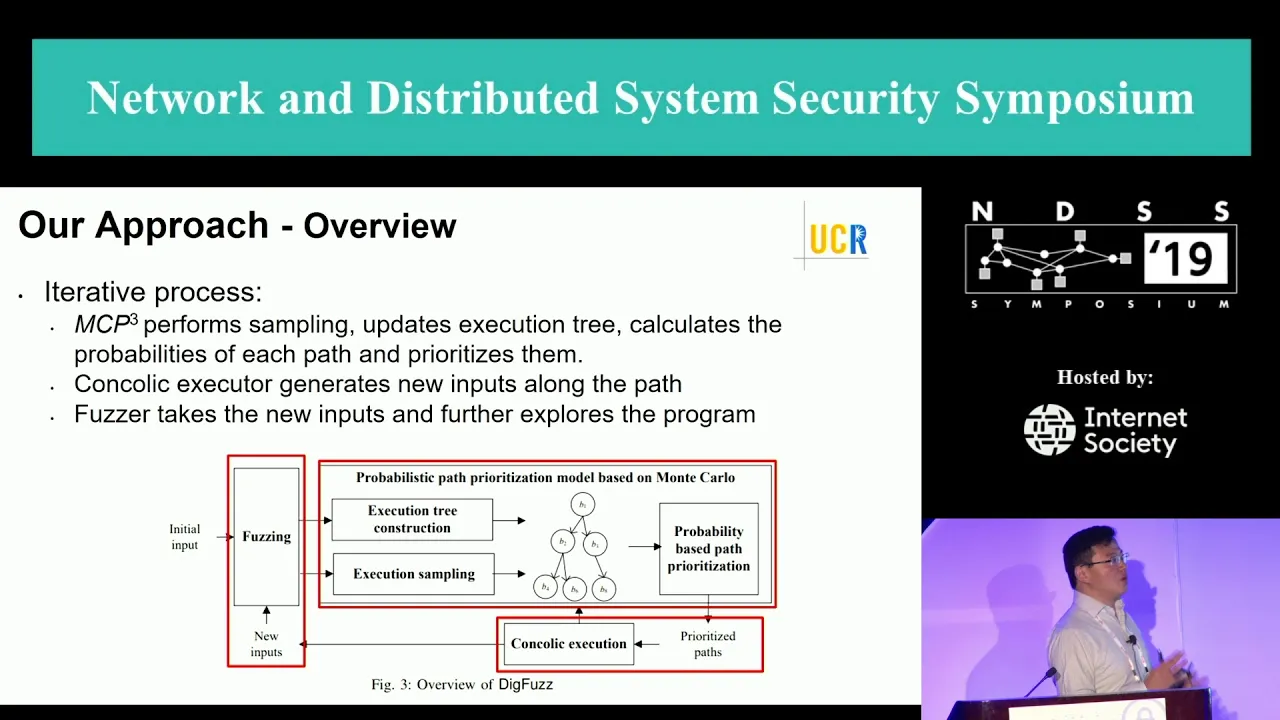
NDSS 2019 Send Hardest Problems My Way: Probabilistic Path Prioritization for Hybrid Fuzzing
NDSSSymposium
496 views•2019-04-02

12:48
Computer Science
How realistic is Cities: Skylines?
CityBeautiful
159K views•2019-02-14

46:39
Computer Science
GUIs & TUIs: Choosing a User Interface for Your Python Project | Real Python Podcast
realpython
2K views•2025-04-04

25:15
Computer Science
The OSI Model - Explained by Example
hnasr
225K views•2019-05-12

1:10:47
Computer Science
Cloud Computing - Introduction
elithecomputerguy
98K views•2019-10-07

2:24
Computer Science
From Traveler's Dilemma to Dynamic Routing | Demystifying Networking
IITBombayJuly
5K views•2019-08-04
Trending

13:38
Law
WOW! Judge TURNS THE TABLES on Trump in His OWN $10B LAWSUIT!!!
MeidasTouch
197K views•2026-07-23

13:25
Business
Playstation NO DISC/NO BUY Fight Is Over...
DavidJaffeGames
4K views•2026-07-23

22:40
Business
Steam and Xbox Just Dropped The Hammer On PlayStation
OhNoItsAlexx
9K views•2026-07-23

16:52
Anthropology
Americans Confused in Australia for 17 Minutes Straight
IWrocker
17K views•2026-07-23